
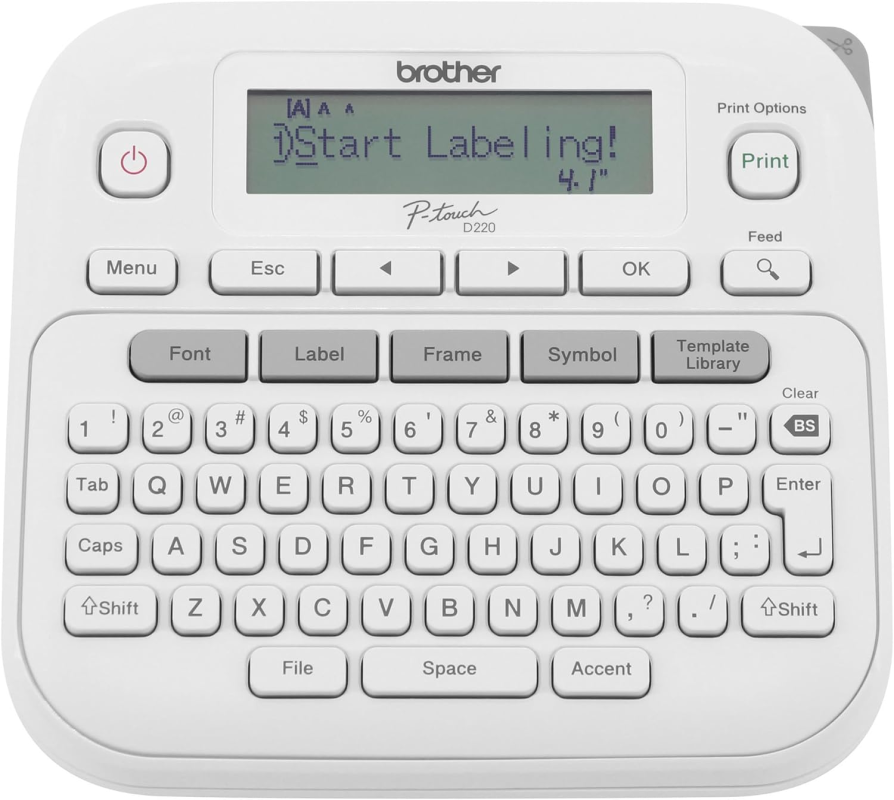
Brother P-Touch PTD220 Home/Office Everyday Label Maker

Important Links
 Safety Operating Procedure

Description The Brother P-Touch PTD220 is a handheld desktop label maker with a QWERTY keyboard that prints onto Brother TZe laminated label tapes. It offers built-in fonts, frames, symbols, and formatting presets, with a graphical preview display and a manual cutter for finishing each label. In the lab, it produces durable, professional labels for equipment, sample containers, bins, cables, and storage—keeping stations, materials, and hardware clearly and consistently identified.
Specs * Form factor: Handheld label maker with QWERTY keyboard * Tape type: Brother TZe laminated tapes * Tape widths: 3.5, 6, 9, and 12 mm (up to ~1/2 inch) * Power: 6× AAA batteries or optional AC adapter (sold separately) * Display: Graphical LCD with label preview * Cutter: Manual push-button cutter * Formatting: Multiple fonts, styles, frames, symbols, and templates * Print resolution: 180 dpi * Model: Brother PTD220
Hazards
- Cutter blade: the internal cutting mechanism is sharp—keep fingers clear of the tape exit and cutter
- Small parts: AAA batteries and tape cartridges are choking/handling hazards if mishandled
- Battery leakage: batteries left in during long-term storage can corrode the compartment
- Cable trip: the optional AC adapter cord is a minor snag point on a benchtop
Things to Avoid
- Reaching into the tape exit or cutter while printing or cutting
- Forcing or pulling the tape out by hand (can jam the mechanism)
- Mixing tape types/widths that don't match the cartridge spec
- Liquids on or near the keyboard and electronics
- Leaving batteries installed during long storage
- Storing in direct heat or sunlight (can warp tape cartridges)
Safety Checks
- Batteries fresh (or AC adapter connected) and compartment closed
- Tape cartridge seated correctly with no slack in the tape
- Tape exit slot clear of obstructions before cutting
- Device on a stable, flat surface
Operational Checks
- Power on and confirm the display reads correctly
- Verify the loaded tape width matches the label settings
- Type and preview the label on screen before printing
- Print, then use the manual cutter—wait for the print to finish before cutting
- Confirm the printed label is legible and fully cut
Cleanup
- Power down after use
- Remove the AAA batteries for long-term storage
- Wipe the body with a dry soft cloth; keep the tape exit and cutter free of adhesive residue
- Close the cartridge compartment and return the device to its station
- Restock or note low tape; log usage